
Virtual Background Dos and Don'ts: 12 Rules for Professional Video Calls
Master virtual background etiquette with these 12 essential dos and don'ts. Avoid common mistakes and look professional on every video call.
Virtual backgrounds have gone from a novelty to a workplace essential, but not everyone uses them well. A poorly chosen or badly configured background can undermine your professionalism just as much as a good one can enhance it.
These 12 rules cover the most important dos and don'ts for virtual backgrounds in professional settings. Follow them and you will look polished on every call. Ignore them and you might be the person everyone remembers for the wrong reasons.
The Dos
1. DO Use High-Resolution Images
This is the single most impactful technical rule. A low-resolution background looks pixelated and amateurish on screen, especially on larger monitors. Always use images that are at least 1920x1080 pixels (1080p). This resolution matches the standard output of modern webcams and ensures your background looks crisp and clear to every participant.
If you are unsure about your background's resolution, check the image properties on your computer before uploading it. Any image under 1280x720 should be replaced immediately.
2. DO Match Your Lighting to the Background
One of the most overlooked aspects of virtual backgrounds is lighting consistency. If your background shows a bright, sun-lit office but you are sitting in a dimly lit room, the contrast looks unnatural and draws attention to the fact that your background is virtual.
Position a light source in front of you and slightly above eye level. This creates even, flattering illumination on your face that blends naturally with most professional background scenes. Avoid overhead-only lighting, which creates harsh shadows under your eyes and nose.
3. DO Test Before Important Calls
What looks great in your platform's preview window might look different during an actual call with screen sharing, multiple participants, and network compression. Before any high-stakes meeting -- client presentations, interviews, board meetings -- join a test call to verify your background looks clean and professional.
Pay attention to the edges around your head and shoulders. If your hair, hands, or clothing are disappearing into the background, you may need to adjust your lighting or physical backdrop.
4. DO Choose Contextually Appropriate Scenes
The best virtual background matches the tone and context of your meeting. For client calls and formal meetings, an executive office or clean meeting room works well. For internal team standups, a modern coworking space or creative studio is appropriate. For casual one-on-ones, you have more flexibility.
The rule of thumb: your background should be slightly more formal than the occasion demands. It is better to look a touch over-prepared than under-prepared.
5. DO Use a Branded Background for Work
A branded background is the professional standard for client-facing roles and anyone who regularly represents their organization on video calls. It communicates professionalism, reinforces your company's visual identity, and ensures consistency across your entire team.
As covered in our virtual background etiquette guide, branded backgrounds have become an expected element of professional video presence, much like a professional email signature.
6. DO Keep Your Physical Background Simple
Even with virtual backgrounds enabled, your real environment affects the quality of the virtual one. Sitting against a plain, uncluttered wall gives your platform's AI the cleanest possible input for edge detection. This results in smoother, more natural-looking virtual backgrounds with fewer glitches around your head and shoulders.
If you cannot find a plain wall, at minimum clear away any moving objects (pets, ceiling fans, people walking behind you) from behind your chair.
The Don'ts
7. DON'T Use Busy or Distracting Scenes
A background with too much visual detail -- busy patterns, bright colors, lots of objects -- competes with you for the viewer's attention. Your face should be the focal point of the call, and a distracting background undermines that.
Avoid backgrounds with: neon signs, crowded cityscapes, detailed artwork, tropical scenery with complex foliage, or anything with strong patterns. Choose clean, professional spaces with muted tones and simple geometry.
8. DON'T Use Copyrighted or Inappropriate Images
Using someone else's photograph without permission, a competitor's office space, or any image you do not have rights to is both unprofessional and potentially a legal issue. Similarly, avoid backgrounds that could be considered inappropriate, controversial, or distracting in a professional context.
Stick to backgrounds you have created, purchased, or generated through a platform like Branded BG that provides commercial usage rights.
9. DON'T Use Obviously Fake Locations
A background showing you on a yacht, on the surface of Mars, or in an exotic location you are clearly not actually in can come across as silly rather than professional. While these might be fun for casual social calls, they undermine credibility in professional settings.
The uncanny valley effect applies to backgrounds: when something looks almost real but not quite, it creates a subtle sense of unease. Stick to realistic scenes that could plausibly be your actual environment.
10. DON'T Change Backgrounds Mid-Meeting
Switching your virtual background while a call is in progress is visually jarring and distracting. It interrupts the flow of conversation and draws attention away from the content being discussed. It also looks like you are not fully engaged with the meeting.
Set your background before joining the call, and leave it in place until the call ends. If you realize your background is not working well during a call, it is better to switch to blur or no background than to cycle through options while others are presenting.
11. DON'T Rely on a Virtual Background to Fix Bad Lighting
Virtual backgrounds work best when you already have decent lighting. Using a virtual background as a substitute for proper lighting results in ghostly edge effects where your body blends with the background, disappearing limbs when you gesture, and an overall uncanny appearance.
Invest in basic front-facing lighting first. A simple desk lamp or ring light makes an enormous difference in how cleanly your platform's AI separates you from the background. For more detailed lighting advice, check our tips for professional video calls.
12. DON'T Forget About Video Calls from Mobile
If you occasionally join calls from your phone or tablet, your virtual background settings may not carry over from your desktop. Mobile apps often have different background libraries and settings. Make sure your branded background is also uploaded and configured on your mobile devices so you maintain the same professional appearance regardless of how you join.
Putting It All Together
The common thread through all these rules is intentionality. The professionals who look best on video calls are not the ones with the fanciest equipment -- they are the ones who have thought about their presentation and made deliberate choices.
A high-quality branded background, proper lighting, and a consistent setup address the majority of these dos and don'ts automatically. You do not need to remember 12 rules every time you join a call. You just need to set up your environment once, test it, and maintain it.
The Checklist
Before your next important call, run through this quick checklist:
- Background is 1920x1080 or higher resolution
- Scene is professional and contextually appropriate
- Lighting is even and front-facing
- Physical background is simple and uncluttered
- Background is tested and working smoothly
- Same background is set on mobile devices if needed
If all six boxes are checked, you are ready to present your best professional image on every video call.
Looking for a professional branded background that follows all the rules? Create yours with Branded BG and get a high-resolution, platform-optimized background with your logo in under 30 seconds.
Ready to elevate your video calls?
Create professional branded backgrounds that make every meeting a branding opportunity.
Related Articles
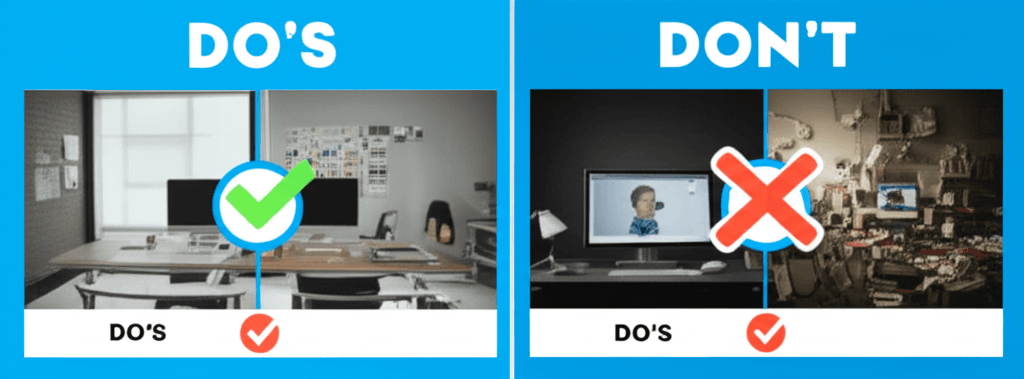
Virtual Background Etiquette: Do's and Don'ts for Professional Calls
Master virtual background etiquette with this guide to professional video call standards. Learn what works, what doesn't, and how to make the right impression every time.

DIY vs Professional Virtual Backgrounds: What Actually Works
Compare DIY virtual background solutions with professional options. Learn when to build your own, when to invest in quality, and how to get the best results for your video calls.
How to Set Up Virtual Backgrounds in Zoom: Complete 2026 Guide
Step-by-step guide to setting up virtual backgrounds in Zoom, including system requirements, best practices, and troubleshooting tips for professional video calls.