
Best Virtual Background Tools in 2026: Complete Comparison
Compare the top virtual background tools for Zoom, Teams, and Google Meet. Find the best solution for professional video calls, from free options to premium services.
Finding the right virtual background tool can transform your video call presence. Whether you're looking for free built-in options or premium solutions with advanced features, this guide compares everything available in 2026.
Built-In Platform Tools
Zoom Virtual Backgrounds
Zoom pioneered mainstream virtual backgrounds and continues to offer robust features.
Pros:
- Extensive preset library
- Video background support
- Studio Effects for touch-ups
- Works without green screen (on modern hardware)
Cons:
- Limited customization of presets
- No built-in logo/branding tools
- Quality varies with lighting
Best for: Users who primarily use Zoom and want quick, easy backgrounds.
Microsoft Teams Backgrounds
Teams has significantly improved its background features for enterprise users.
Pros:
- Together Mode for unique meeting layouts
- Admin controls for organizations
- Good integration with Microsoft 365
- Background blur is excellent
Cons:
- Fewer creative presets than Zoom
- Custom uploads can be cumbersome
- Occasional edge detection issues
Best for: Organizations using Microsoft 365 ecosystem.
Google Meet Visual Effects
Google Meet's backgrounds are simple but effective.
Pros:
- Clean, professional presets
- Easy upload process
- Works well in Chrome
- Lightweight on system resources
Cons:
- Fewer features than competitors
- Limited admin controls
- Some hardware restrictions
Best for: Google Workspace users who value simplicity.
Dedicated Virtual Background Software
mmhmm
A popular tool for presentations and creative video calls.
Pros:
- Slides and presentations integration
- Creative effects and animations
- Works with any video platform
- Great for content creators
Cons:
- Subscription pricing
- Can be overwhelming for simple needs
- Learning curve
Best for: Presenters, educators, and content creators.
XSplit VCam
Professional-grade background removal.
Pros:
- Excellent edge detection
- Works with any software
- Green screen support
- One-time purchase option
Cons:
- Requires separate software
- More setup involved
- Windows-focused
Best for: Streamers and users who need precise background removal.
NVIDIA Broadcast
AI-powered video effects using GPU acceleration.
Pros:
- Superior background removal
- Noise removal for audio
- Auto-framing
- Free for NVIDIA GPU owners
Cons:
- Requires NVIDIA RTX GPU
- High system requirements
- Limited to compatible hardware
Best for: Users with NVIDIA RTX graphics cards.
Branded Background Solutions
Branded BG
Purpose-built for creating professional branded backgrounds.
Pros:
- AI-powered logo placement
- 100+ professional backgrounds
- Optimized for all platforms
- No design skills needed
- 30-second creation time
Cons:
- Credit-based pricing
- Focus on static images (no video)
Best for: Professionals and teams who want branded consistency.
Canva
General design tool with background templates.
Pros:
- Extensive template library
- Full design customization
- Brand kit features
- Team collaboration
Cons:
- Requires design effort
- Not optimized for video calls
- Time-consuming for multiple backgrounds
Best for: Users who want full creative control and have design time.
Comparison Table
| Feature | Zoom | Teams | Meet | mmhmm | Branded BG | |---------|------|-------|------|-------|------------| | Free tier | Yes | Yes | Yes | Limited | Trial | | Custom upload | Yes | Yes | Yes | Yes | Yes | | Logo integration | No | No | No | Limited | Yes (AI) | | Video backgrounds | Yes | Yes | Limited | Yes | No | | Edge detection | Good | Good | Fair | Good | N/A | | Setup time | Instant | Instant | Instant | Moderate | 30 sec |
How to Choose
For Individual Users
If you just need basic backgrounds, start with your platform's built-in tools. They're free and require no setup.
For Professionals
If you're client-facing or in sales, invest in branded backgrounds. The professional impression is worth the small cost.
For Teams
Consider solutions that offer:
- Consistent branding across members
- Easy deployment
- Admin controls
- Bulk creation capabilities
For Creators
Look at mmhmm or OBS with virtual camera plugins for maximum creative control.
Our Recommendation
For most professionals, the combination of platform built-in tools for casual meetings and Branded BG for client-facing calls offers the best balance.
Built-in tools handle day-to-day needs, while branded backgrounds elevate important meetings where first impressions matter.
Getting Started
- Assess your needs: Casual vs. professional meetings
- Test built-in tools: Start free with Zoom/Teams/Meet
- Add branding: Create a branded background for important calls
- Standardize: Roll out consistent backgrounds across your team
Ready to elevate your video presence? Create your branded background in under 30 seconds.
Ready to elevate your video calls?
Create professional branded backgrounds that make every meeting a branding opportunity.
Related Articles
Google Meet Backgrounds: Complete Setup Guide for 2026
Master Google Meet's visual effects feature with this complete guide to virtual backgrounds, blur effects, and professional video call presentation.
Microsoft Teams Virtual Background: Setup Guide for 2026
Learn how to set up and customize virtual backgrounds in Microsoft Teams, including best practices for professional video meetings and troubleshooting tips.
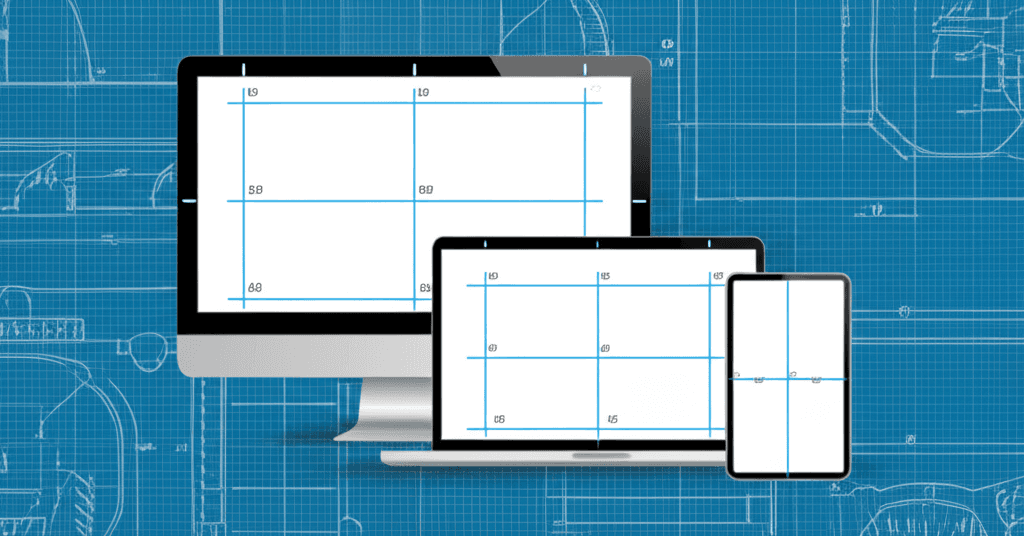
Virtual Background Size Guide: Dimensions for Every Platform
The complete guide to virtual background dimensions for Zoom, Teams, Google Meet, and more. Learn the right resolution, aspect ratio, and file size for every platform.